
Binom Technical Support for Security Systems

The goal of the project is to provide 24/7 multilingual support for security system users via the website, mobile app, and phone lines. Binom Technical Support independently consults on device operation, assists with password recovery, and identifies types of malfunctions from photos. The system automates routine request handling and integrates with a ticketing system to escalate complex incidents to live specialists.

About the client

The company is a manufacturer, seller, installer, and maintenance provider of security systems. Number of clients — more than 100,000. Number of requests to the technical support desk — more than 1,000 per week. Number of requests to the security monitoring desk — information is confidential.

The task

Provide customer support both in terms of technical guidance — answering questions about the use of specific devices, password recovery, incidents, partial malfunctions, requesting technical support, and similar matters.

Provide this support 24/7 on the website, in the mobile application, and over the phone.

Results

Multilingual support has been achieved by phone, through the support widget on the website, and integrated into the mobile app. User handling is 24/7 and multilingual.

User satisfaction — 97%. Escalation to a live specialist after interacting with Binom Technical Support — 11%.

What was implemented

1. Binom Technical Support

The company chose Binom Technical Support — a synthetic employee trained on information about devices, common malfunctions, access-recovery procedures, and escalation rules to a live specialist.

Binom Technical Support gained the ability to:

  • answer questions about how to use devices;
  • help with password recovery;
  • provide guidance on incidents and partial malfunctions;
  • arrange a technical support callout when necessary;
  • work in any language;
  • operate around the clock.

2. Widget on the website and in the app

A branded support widget was installed on the website — with text, voice messages, and voice communication. The widget is also integrated directly into the company’s mobile application, so a customer can reach support directly from the app, without switching to the website.

The widget was configured with:

  • corporate colors;
  • logo;
  • appearance;
  • greeting;
  • display rules on website pages and in the app.

3. Phone line, voice messages, and real-time voice

Support is available in three voice formats at once:

  • a regular phone call — Binom Technical Support answers calls as a voice agent;
  • voice messages — a customer can send a voice message (for example, in the widget or the app), and Binom recognizes it and replies;
  • real-time voice communication directly from the website via WebRTC, with no app installation and no phone call required.

During a voice conversation, Binom Technical Support listens to the customer’s question, replies by voice, and clarifies details of the problem.

4. Identifying device type and fault type from a photo

A customer can send a photo of a device or its damage. Binom Technical Support analyzes the image, identifies the device type and the type of malfunction, and based on that either provides instructions for resolving the issue independently or arranges a technician callout.

5. Delivering downloadable instructions

In addition to consulting within the dialogue, Binom Technical Support can provide the customer with an installation or repair guide as a downloadable file — a PDF, image, or diagram attached directly to the reply.

6. Protecting personal data during password recovery

When personal data is processed by neural networks, Binom sends the data in encoded form for processing, and after it returns from the neural network, inserts the reply data for the customer back into the encoded field. This way, personal data (for example, during password recovery) stays within the system and never leaves it — including never reaching the neural network itself in unencoded form.

7. Ticketing system integration

Binom Technical Support is integrated with the company’s ticketing system. The integration allows it to:

  • create a ticket when an interaction requires a live specialist;
  • log incidents, complaints, and password-recovery requests;
  • pass the dialogue history and gathered problem details to the ticketing system;
  • take the customer’s previous requests into account in a new conversation.

Managing Binom Technical Support’s work

Management is done through a single Binom dashboard. The company can:

  • view all conversations;
  • see customer messages and Binom Technical Support’s replies;
  • track conversation history;
  • bring a live specialist into a conversation;
  • turn off the AI in one specific conversation without stopping work with other customers;
  • assign employee access rights through the Teams section.

Languages

Binom Technical Support works in all languages right away, without being tied to a specific country or local commercial terms — since this is technical support, not sales.

Outcome

The company gained round-the-clock, multilingual technical support for security-system customers across the website, the app, and the phone — with photo-based problem recognition, protected password delivery, and escalation of complex cases to a live specialist.

How to implement Binom Technical Support

Creating Binom Technical Support requires no programming knowledge or AI experience. The core information is provided through a conversation with Binom Tutor. Fully preparing the first Binom takes about 30 minutes when done in sequence.

What to prepare

Before you start, it’s useful to have: a link to the company website; a description of the business and technical support services; documents about devices and common malfunctions; a logo; brand colors; a list of employees who will need access; the ticketing system data that needs to be connected; sample photos of devices and typical faults for training the recognition module; a bank card to set up the subscription with the trial version.

You don’t have to prepare everything in advance. Any missing information can be added later through Binom Tutor.

Step 1. Register your company

Create a company account in Binom AI. After registration, the Binom Tutor window opens. Binom Tutor helps you create, train, and configure your synthetic employee through an ordinary conversation. → FAQ: Step 1 — how to register a company in Binom AI

Step 2. Set up a subscription or trial period

Activate access to create a Binom. Once activated, you can move on to selecting a role and training. → FAQ: Step 2 — how to set up a subscription or trial period

Step 3. Explain the task to Binom Tutor

Describe in plain language why the company needs Binom Technical Support: answering questions about how to use devices, helping with password recovery, advising on incidents and malfunctions, arranging technical support callouts, and working in multiple languages around the clock. → FAQ: Step 3 — how to explain the task to Binom Tutor

Step 4. Provide information about the company

Send Binom Tutor documents about devices, common malfunctions, access-recovery procedures, and escalation rules to a live specialist. → FAQ: Step 4 — what company information to send to Binom Tutor

Step 5. Choose a role

Choose a technical support role from those suggested by Binom Tutor, or from the Roles Board page. → FAQ: Step 5 — how to choose a role for Binom

Step 6. Check that Binom Tutor understood the company correctly

Binom Tutor will describe how it understood the company’s devices, common malfunctions, the technical support tasks, and the escalation rules. Review the description and make corrections if needed. → FAQ: Step 6 — how to check that Binom Tutor understood the company correctly

Step 7. Configure the widget’s appearance

Set the brand colors, logo, window appearance, greeting, and placement of the widget on the website. → FAQ: Step 7 — how to configure the widget’s appearance

Step 8. Connect the mobile app

Integrate the support widget directly into the company’s mobile app via the app’s SDK/API, so a customer can reach support directly from the app. After connecting, check: does the dialogue open from the app, does Binom respond, are voice messages available.

Step 9. Connect WebRTC for voice communication

Enable the WebRTC module for real-time voice communication on the website. Check: does Binom hear the customer, does it respond correctly, does it react properly to requests during the conversation. → FAQ: Step 9 — how to connect WebRTC

Step 10. Connect the phone line

Set up call routing so incoming calls reach Binom Technical Support. Check: does Binom answer the call, does it recognize speech, does it respond correctly by voice, does it hand off to a live specialist when needed.

Step 11. Install the widget on the website

Copy the short JavaScript code provided by the system and add it to the website’s code. Check: does the widget display, does the dialogue open, does the greeting work, does voice communication work. → FAQ: Step 11 — how to install the widget on the website

Step 12. Set up recognition of device and fault photos

Connect the image analysis module and train it on typical photos of the company’s devices and common faults. Check: is the device type correctly identified from the photo, is the fault type correctly identified, is the correct instruction or specialist callout being offered.

Step 13. Set up the personal data protection module

Enable encoding of personal data when it’s processed by the neural network (used, for example, during password recovery). Check that personal data is encoded before processing and never leaves the system in unencoded form.

Step 14. Connect the ticketing system

Connect the company’s ticketing system and define: which interactions create a ticket, what data is passed into it (dialogue history, problem type, customer contacts), how the customer’s previous requests are taken into account. After connecting, run a test conversation and check ticket creation and handoff.

Step 15. Add employees

Go to the Teams section, add employees by email, and assign each of them the necessary permissions. → FAQ: Step 15 — how to add employees through Teams

Step 16. Set up notifications

Configure sound and system notifications: for a new conversation, a new ticket, a complaint, or the need to bring in a specialist. → FAQ: Step 16 — how to set up notifications

Step 17. Run testing

Send test messages through the website, the app, the phone, and voice messages. Check: the accuracy of technical answers, password recovery with personal data protection working correctly, recognition of device and fault photos, ticket creation, and escalation to a live specialist.

Once checked, Binom Technical Support can go live. → FAQ: Step 17 — how to test before launch

Help from a specialist

If you have questions during setup, write to Binom Tutor in the chat: “I’d like to talk to a person.” During business hours, a live specialist will join the conversation and help you finish the setup.
Binom Technical Support for Security Systems

The goal of the project is to provide 24/7 multilingual support for security system users via the website, mobile app, and phone lines. Binom Technical Support independently consults on device operation, assists with password recovery, and identifies types of malfunctions from photos. The system automates routine request handling and integrates with a ticketing system to escalate complex incidents to live specialists.

About the client

The company is a manufacturer, seller, installer, and maintenance provider of security systems. Number of clients — more than 100,000. Number of requests to the technical support desk — more than 1,000 per week. Number of requests to the security monitoring desk — information is confidential.

The task

Provide customer support both in terms of technical guidance — answering questions about the use of specific devices, password recovery, incidents, partial malfunctions, requesting technical support, and similar matters.

Provide this support 24/7 on the website, in the mobile application, and over the phone.

Results

Multilingual support has been achieved by phone, through the support widget on the website, and integrated into the mobile app. User handling is 24/7 and multilingual.

User satisfaction — 97%. Escalation to a live specialist after interacting with Binom Technical Support — 11%.

What was implemented

1. Binom Technical Support

The company chose Binom Technical Support — a synthetic employee trained on information about devices, common malfunctions, access-recovery procedures, and escalation rules to a live specialist.

Binom Technical Support gained the ability to:

  • answer questions about how to use devices;
  • help with password recovery;
  • provide guidance on incidents and partial malfunctions;
  • arrange a technical support callout when necessary;
  • work in any language;
  • operate around the clock.

2. Widget on the website and in the app

A branded support widget was installed on the website — with text, voice messages, and voice communication. The widget is also integrated directly into the company’s mobile application, so a customer can reach support directly from the app, without switching to the website.

The widget was configured with:

  • corporate colors;
  • logo;
  • appearance;
  • greeting;
  • display rules on website pages and in the app.

3. Phone line, voice messages, and real-time voice

Support is available in three voice formats at once:

  • a regular phone call — Binom Technical Support answers calls as a voice agent;
  • voice messages — a customer can send a voice message (for example, in the widget or the app), and Binom recognizes it and replies;
  • real-time voice communication directly from the website via WebRTC, with no app installation and no phone call required.

During a voice conversation, Binom Technical Support listens to the customer’s question, replies by voice, and clarifies details of the problem.

4. Identifying device type and fault type from a photo

A customer can send a photo of a device or its damage. Binom Technical Support analyzes the image, identifies the device type and the type of malfunction, and based on that either provides instructions for resolving the issue independently or arranges a technician callout.

5. Delivering downloadable instructions

In addition to consulting within the dialogue, Binom Technical Support can provide the customer with an installation or repair guide as a downloadable file — a PDF, image, or diagram attached directly to the reply.

6. Protecting personal data during password recovery

When personal data is processed by neural networks, Binom sends the data in encoded form for processing, and after it returns from the neural network, inserts the reply data for the customer back into the encoded field. This way, personal data (for example, during password recovery) stays within the system and never leaves it — including never reaching the neural network itself in unencoded form.

7. Ticketing system integration

Binom Technical Support is integrated with the company’s ticketing system. The integration allows it to:

  • create a ticket when an interaction requires a live specialist;
  • log incidents, complaints, and password-recovery requests;
  • pass the dialogue history and gathered problem details to the ticketing system;
  • take the customer’s previous requests into account in a new conversation.

Managing Binom Technical Support’s work

Management is done through a single Binom dashboard. The company can:

  • view all conversations;
  • see customer messages and Binom Technical Support’s replies;
  • track conversation history;
  • bring a live specialist into a conversation;
  • turn off the AI in one specific conversation without stopping work with other customers;
  • assign employee access rights through the Teams section.

Languages

Binom Technical Support works in all languages right away, without being tied to a specific country or local commercial terms — since this is technical support, not sales.

Outcome

The company gained round-the-clock, multilingual technical support for security-system customers across the website, the app, and the phone — with photo-based problem recognition, protected password delivery, and escalation of complex cases to a live specialist.

How to implement Binom Technical Support

Creating Binom Technical Support requires no programming knowledge or AI experience. The core information is provided through a conversation with Binom Tutor. Fully preparing the first Binom takes about 30 minutes when done in sequence.

What to prepare

Before you start, it’s useful to have: a link to the company website; a description of the business and technical support services; documents about devices and common malfunctions; a logo; brand colors; a list of employees who will need access; the ticketing system data that needs to be connected; sample photos of devices and typical faults for training the recognition module; a bank card to set up the subscription with the trial version.

You don’t have to prepare everything in advance. Any missing information can be added later through Binom Tutor.

Step 1. Register your company

Create a company account in Binom AI. After registration, the Binom Tutor window opens. Binom Tutor helps you create, train, and configure your synthetic employee through an ordinary conversation. → FAQ: Step 1 — how to register a company in Binom AI

Step 2. Set up a subscription or trial period

Activate access to create a Binom. Once activated, you can move on to selecting a role and training. → FAQ: Step 2 — how to set up a subscription or trial period

Step 3. Explain the task to Binom Tutor

Describe in plain language why the company needs Binom Technical Support: answering questions about how to use devices, helping with password recovery, advising on incidents and malfunctions, arranging technical support callouts, and working in multiple languages around the clock. → FAQ: Step 3 — how to explain the task to Binom Tutor

Step 4. Provide information about the company

Send Binom Tutor documents about devices, common malfunctions, access-recovery procedures, and escalation rules to a live specialist. → FAQ: Step 4 — what company information to send to Binom Tutor

Step 5. Choose a role

Choose a technical support role from those suggested by Binom Tutor, or from the Roles Board page. → FAQ: Step 5 — how to choose a role for Binom

Step 6. Check that Binom Tutor understood the company correctly

Binom Tutor will describe how it understood the company’s devices, common malfunctions, the technical support tasks, and the escalation rules. Review the description and make corrections if needed. → FAQ: Step 6 — how to check that Binom Tutor understood the company correctly

Step 7. Configure the widget’s appearance

Set the brand colors, logo, window appearance, greeting, and placement of the widget on the website. → FAQ: Step 7 — how to configure the widget’s appearance

Step 8. Connect the mobile app

Integrate the support widget directly into the company’s mobile app via the app’s SDK/API, so a customer can reach support directly from the app. After connecting, check: does the dialogue open from the app, does Binom respond, are voice messages available.

Step 9. Connect WebRTC for voice communication

Enable the WebRTC module for real-time voice communication on the website. Check: does Binom hear the customer, does it respond correctly, does it react properly to requests during the conversation. → FAQ: Step 9 — how to connect WebRTC

Step 10. Connect the phone line

Set up call routing so incoming calls reach Binom Technical Support. Check: does Binom answer the call, does it recognize speech, does it respond correctly by voice, does it hand off to a live specialist when needed.

Step 11. Install the widget on the website

Copy the short JavaScript code provided by the system and add it to the website’s code. Check: does the widget display, does the dialogue open, does the greeting work, does voice communication work. → FAQ: Step 11 — how to install the widget on the website

Step 12. Set up recognition of device and fault photos

Connect the image analysis module and train it on typical photos of the company’s devices and common faults. Check: is the device type correctly identified from the photo, is the fault type correctly identified, is the correct instruction or specialist callout being offered.

Step 13. Set up the personal data protection module

Enable encoding of personal data when it’s processed by the neural network (used, for example, during password recovery). Check that personal data is encoded before processing and never leaves the system in unencoded form.

Step 14. Connect the ticketing system

Connect the company’s ticketing system and define: which interactions create a ticket, what data is passed into it (dialogue history, problem type, customer contacts), how the customer’s previous requests are taken into account. After connecting, run a test conversation and check ticket creation and handoff.

Step 15. Add employees

Go to the Teams section, add employees by email, and assign each of them the necessary permissions. → FAQ: Step 15 — how to add employees through Teams

Step 16. Set up notifications

Configure sound and system notifications: for a new conversation, a new ticket, a complaint, or the need to bring in a specialist. → FAQ: Step 16 — how to set up notifications

Step 17. Run testing

Send test messages through the website, the app, the phone, and voice messages. Check: the accuracy of technical answers, password recovery with personal data protection working correctly, recognition of device and fault photos, ticket creation, and escalation to a live specialist.

Once checked, Binom Technical Support can go live. → FAQ: Step 17 — how to test before launch

Help from a specialist

If you have questions during setup, write to Binom Tutor in the chat: “I’d like to talk to a person.” During business hours, a live specialist will join the conversation and help you finish the setup.

Related cases

Luxury restaurant (NDA)

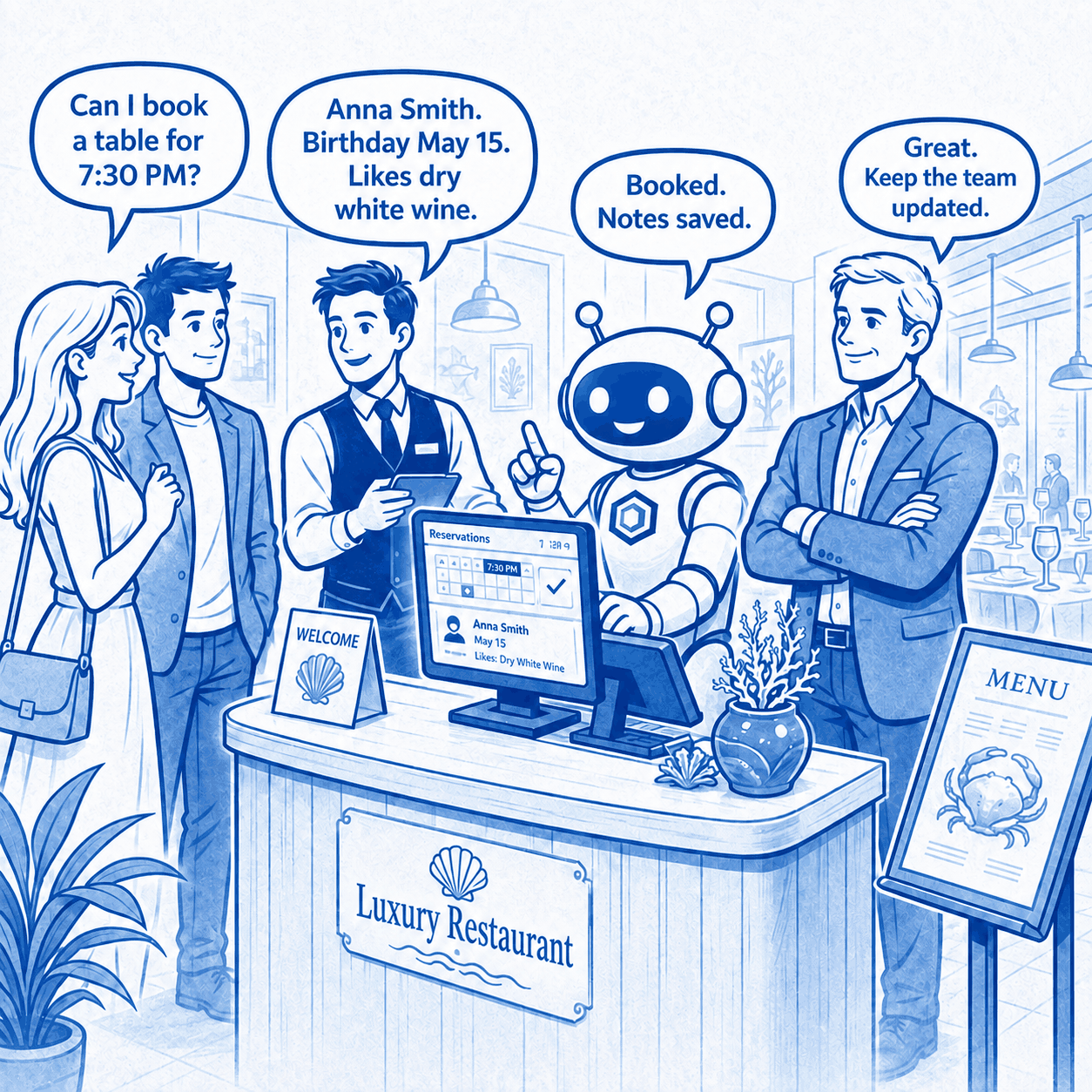
Optimise the restaurant’s key operational processes: speed up staff training and onboarding, reduce the workload on employees handling calls and bookings, minimise manual work with guest reviews, comments and messages, and provide faster, more consistent 24/7 service. This required automating repetitive tasks and connecting them to the restaurant’s existing CRM, Syrve, telephony and digital channels without rebuilding its current infrastructure.

Binom Seller for a Household Chemicals Online Store

The goal of the implementation was to automate 24/7 customer consultations and order processing across all digital channels while providing multilingual support. Binom Seller was designed to independently recommend products, handle customer objections, and perform upselling, transferring data to the CRM and involving a live agent only when necessary.

Khmelnytsk Energozbut

Create an Artificial Intelligence that will respond to client’s text and phone queries 24/7 in the most accurate and helpful way. Clients base of 3 million users.
