
In short
The Binom widget is an AI consultant chat window that goes on any website with one code snippet. It finds products in your price list and shows them with photos and prices, answers questions about delivery, payment and returns, speaks the visitor's language, understands voice messages and screenshots, holds a real-time voice conversation, and hands the chat to a live manager on request, with a notification in Telegram and in the Binom dashboard. Colors, icon, label and window size can be adjusted to match your brand.
Why a website needs an AI consultant, not a feedback form
A visitor who has asked a question is almost ready to buy: they just need one answer about taste, size, compatibility or delivery. If the answer comes by email an hour later, the person has already gone to a competitor. A regular chatbot with buttons doesn't help either: it knows five scripts and replies "read the catalog". The Binom widget answers in seconds, in its own words, using your data: your price list, website, documents and knowledge cards. The same Binom both sells and handles support questions, so the customer doesn't have to look for where to write.
What the Binom widget can do
Every feature below works out of the box once Binom is connected to your website and price list. You don't need to set up scripts or dialog branches.
Finds products and shows them right in the chat
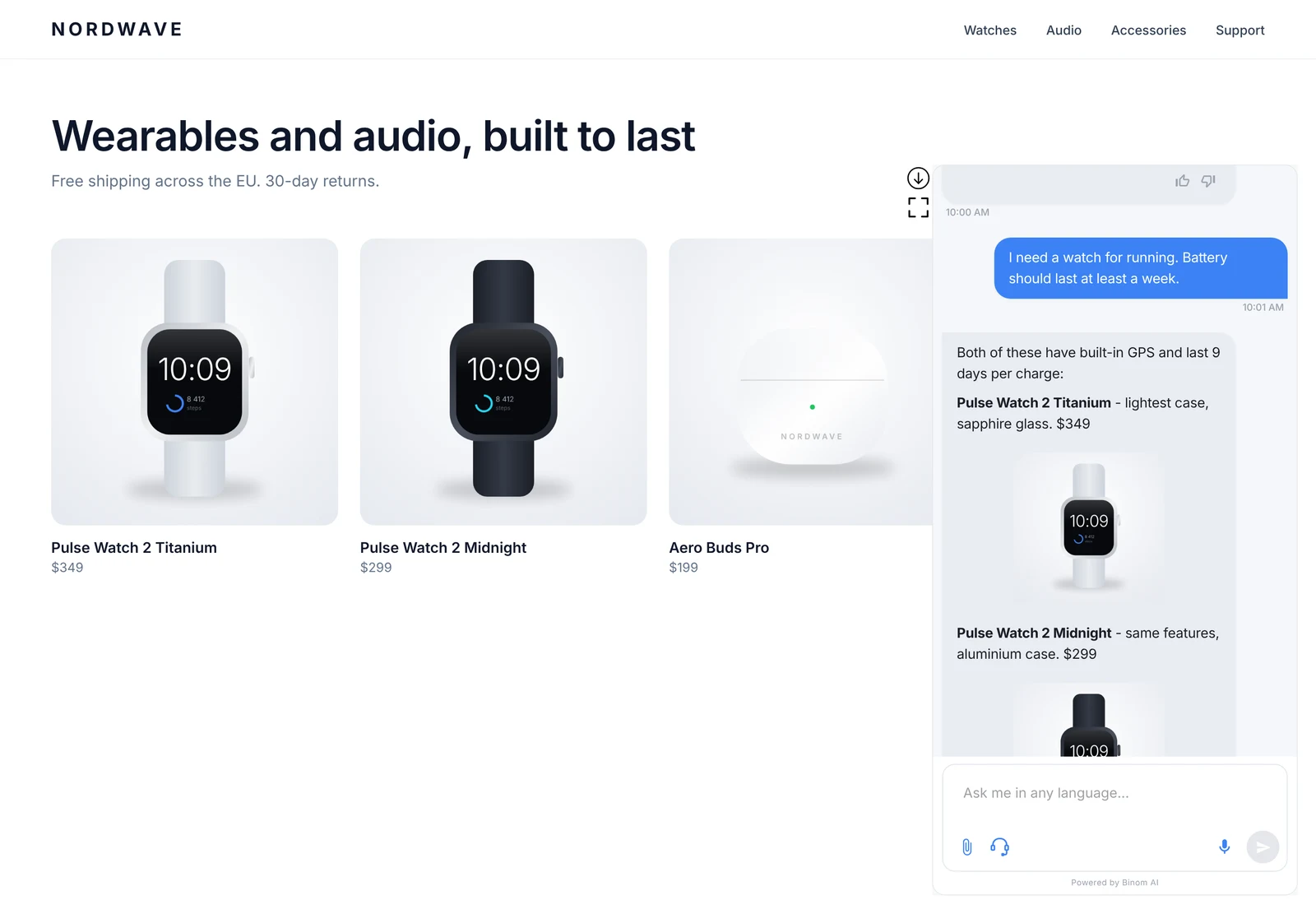
Binom searches for products in your price list or product feed and replies with cards that include a photo, price and a short explanation of why the product fits. The customer doesn't have to browse the catalog and compare on their own, and you get the consultation of your best salesperson on every page. The easiest way to connect products is through Google Merchant: in the "Price lists" section, click "Add Google Merchant" and paste the link to the feed that already works for your Google ads. Binom reads products, prices, availability, photos and links from the feed and picks up changes automatically, so you don't need to upload the price list by hand. If you don't have a feed, an RSS feed or a CSV file will work: how to connect a product catalog.
Knows which page the visitor is on
The widget passes the page address to Binom. On a product page, Binom opens the conversation with a separate greeting about that product, and a greeting card next to the icon shows it before the visitor even opens the chat. For stores, the product is identified by Product ID from the price list; for articles and guides, by the page address. More on the two modes below.
Talks by voice in real time
The headset button in the chat window starts a live voice conversation: the visitor speaks, and Binom answers by voice without pauses for sending messages. Products under discussion appear in the chat window during the conversation, so the customer can see what is being recommended. This is handy for people who don't like typing, and for those choosing a complex product who want to talk through the details.
Accepts voice messages
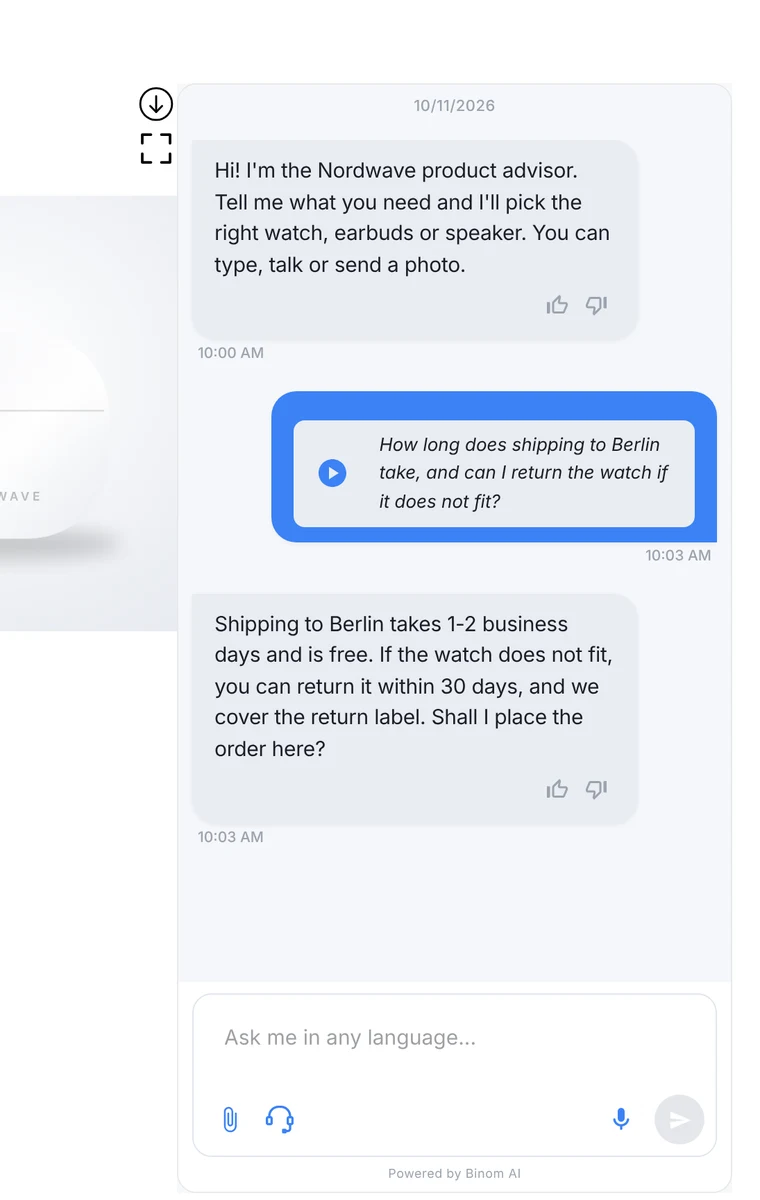
If the visitor would rather dictate a question, they record a voice message with the microphone button. Binom transcribes the recording, answers to the point, and the transcript is saved in the dialog history, so a manager can read it in the dashboard without listening to the audio.
Finds a product by photo or screenshot
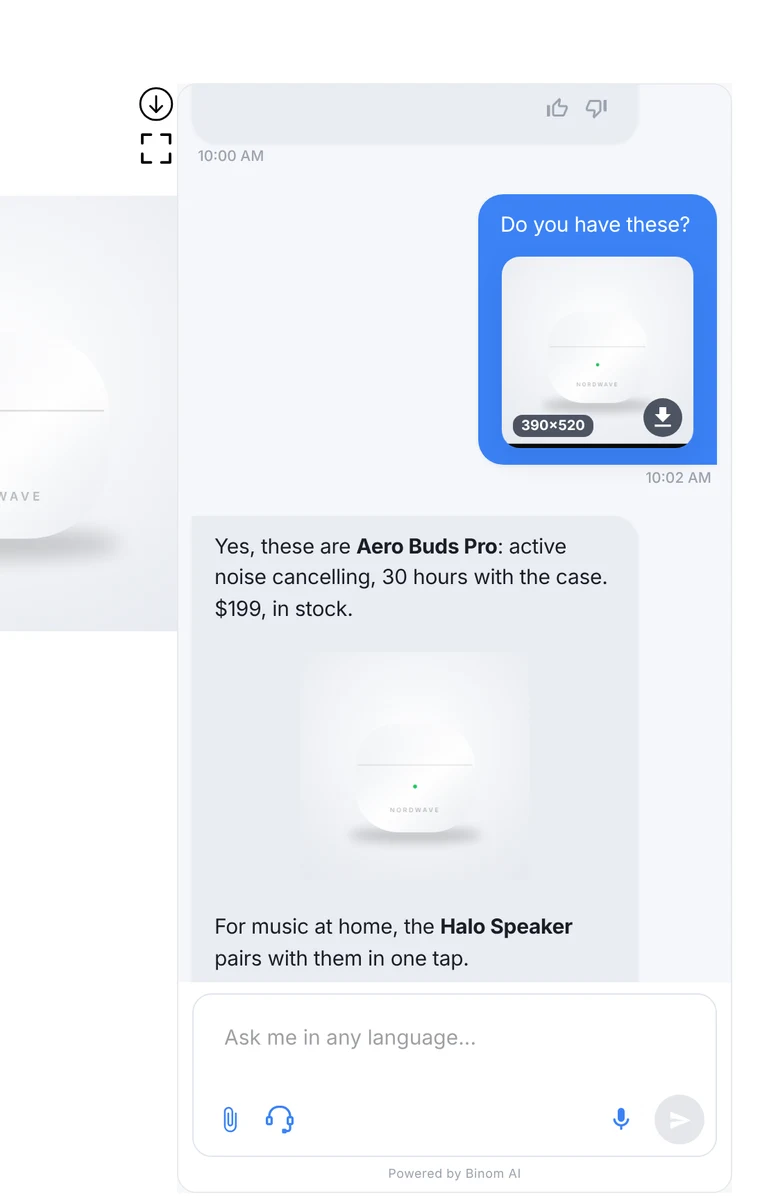
A customer sees a product on social media or at a friend's place and sends a screenshot with the question "do you have this?". Binom recognizes the product in the image, searches for it in the price list and offers it or the closest alternative from your range. This way you don't lose customers who don't know the exact product name.
Speaks the visitor's language
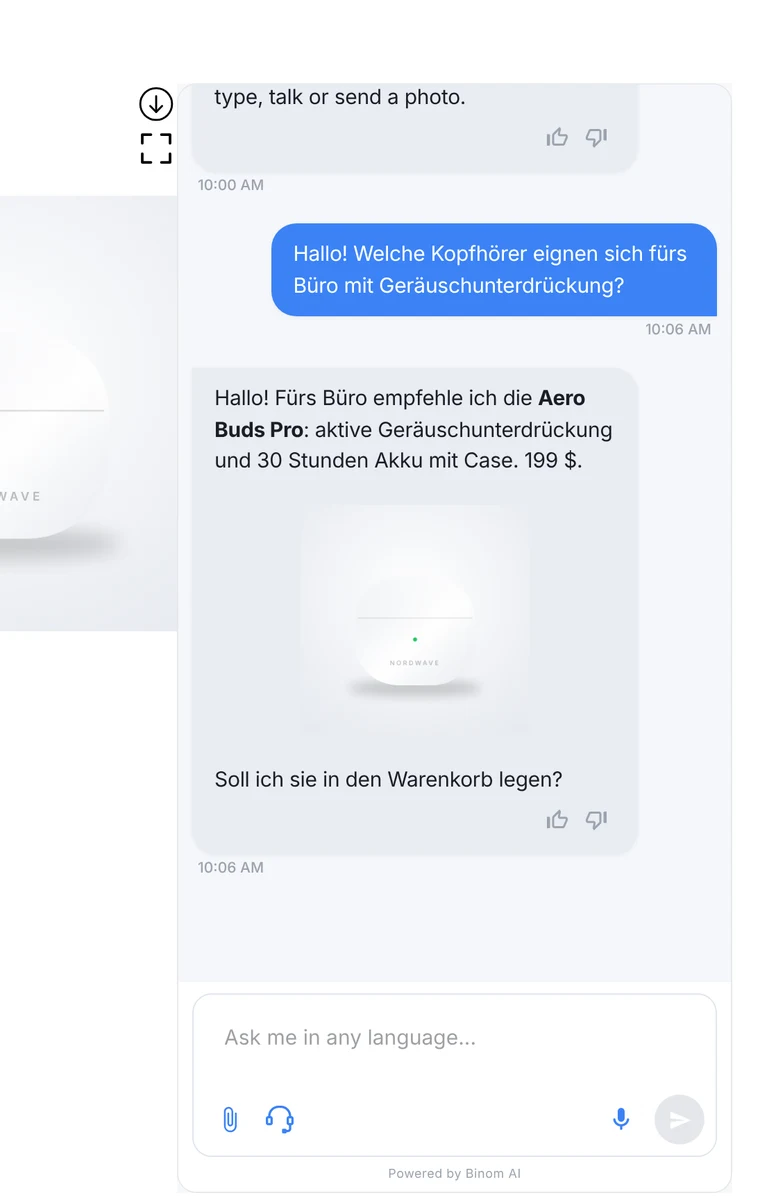
Binom starts the conversation in the website's main language and switches to the language the visitor uses: Polish, English, Ukrainian, German and any other. Widget labels and buttons are translated into nine languages and adapt to the website's language. You don't need to hire consultants for each market: multilingual support is enabled in the settings.
Calls a live manager when the customer asks for a person
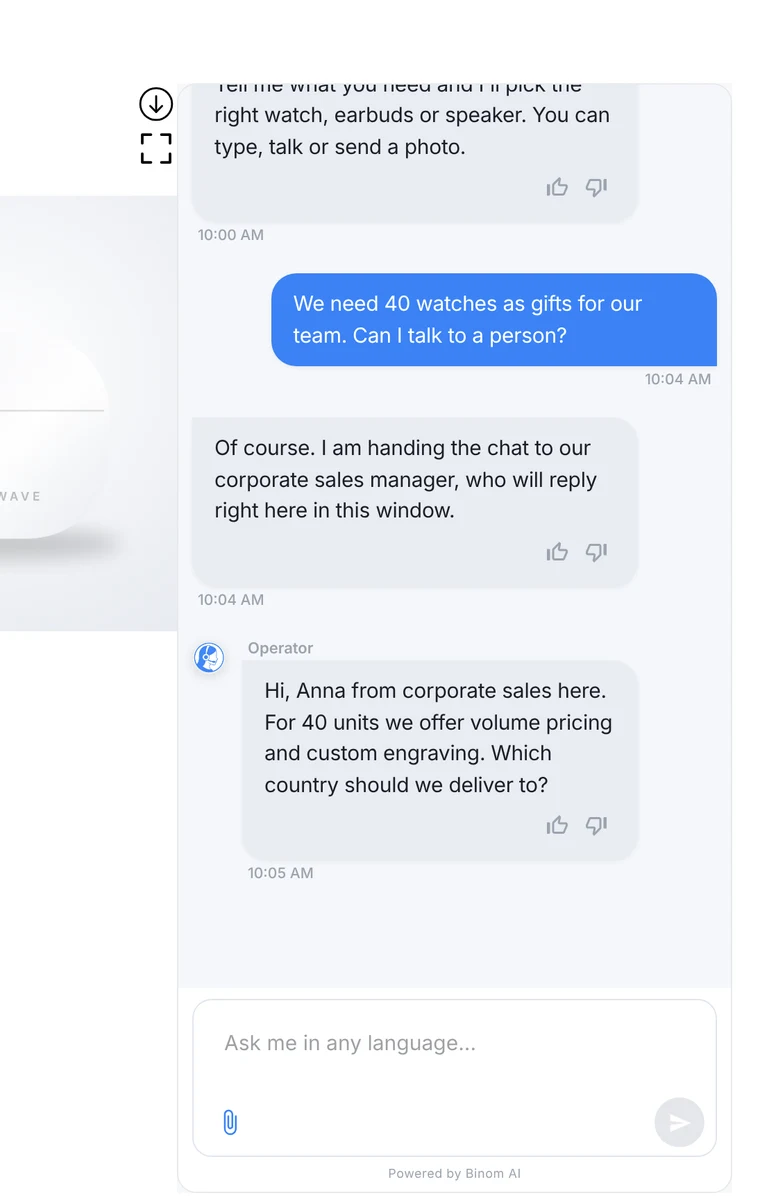
AI doesn't replace you where a human is needed: a wholesale order, a complaint, an unusual request. The customer writes "get me a person", Binom hands over the dialog, and your team gets a notification in the Telegram bot for staff and sees the dialog in the Binom dashboard with the status "Customer asked for a human". The manager replies in the same window, and the customer sees that they are talking to an operator. Outside working hours, the widget says the operator is offline and asks for a name, email and question so the customer can be contacted.
Looks like part of your brand
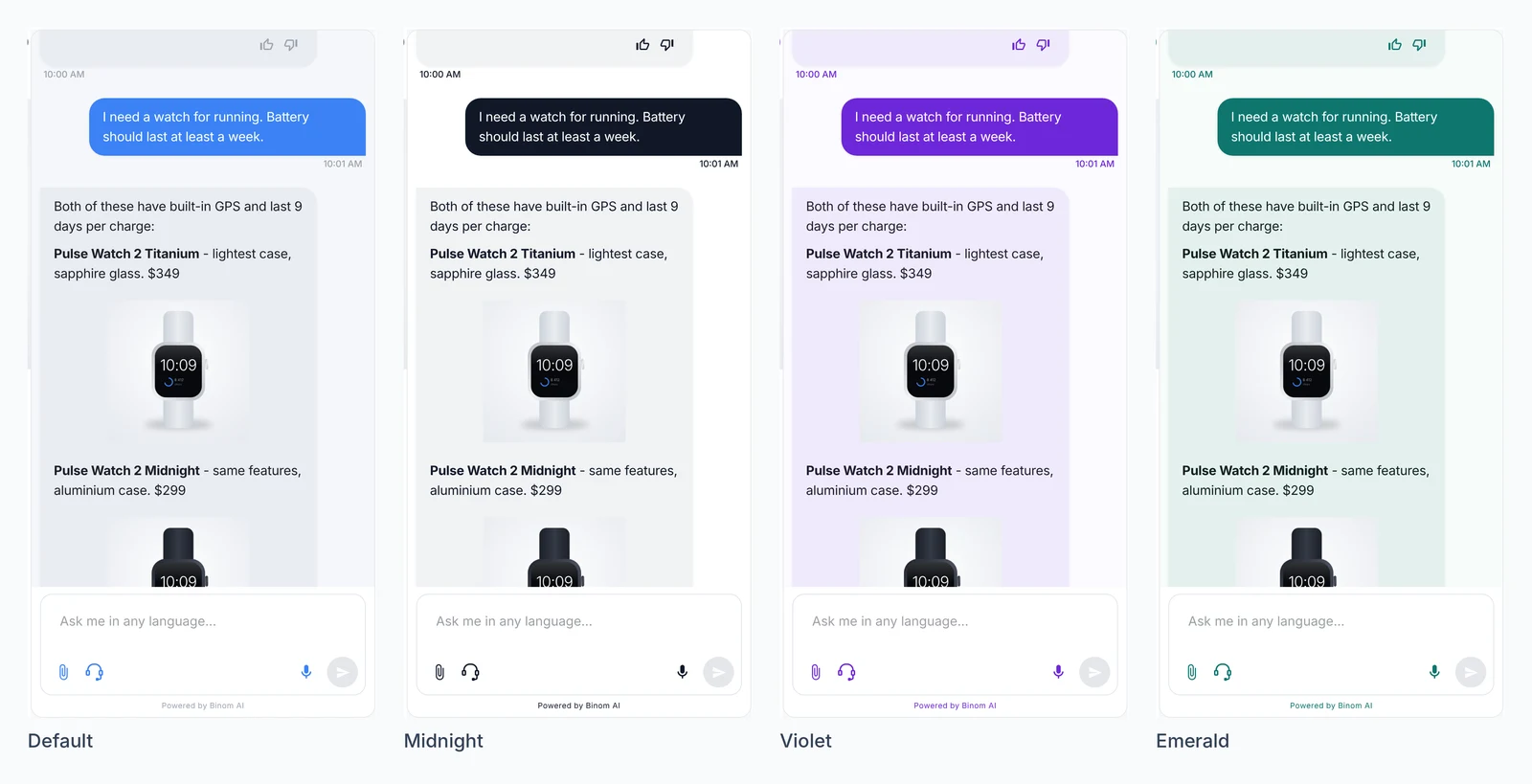
In the dashboard, in the "Integrations" section on the "Widget" tab, you upload your logo for the icon, set the label next to the icon and its color, the window size, background, message and button colors, corner radius and spacing. Colors can be taken from the general Binom branding or set separately for the widget. The greeting card can be shown on every page or once per session, so it doesn't feel intrusive.
Expands to full screen and works well on phones
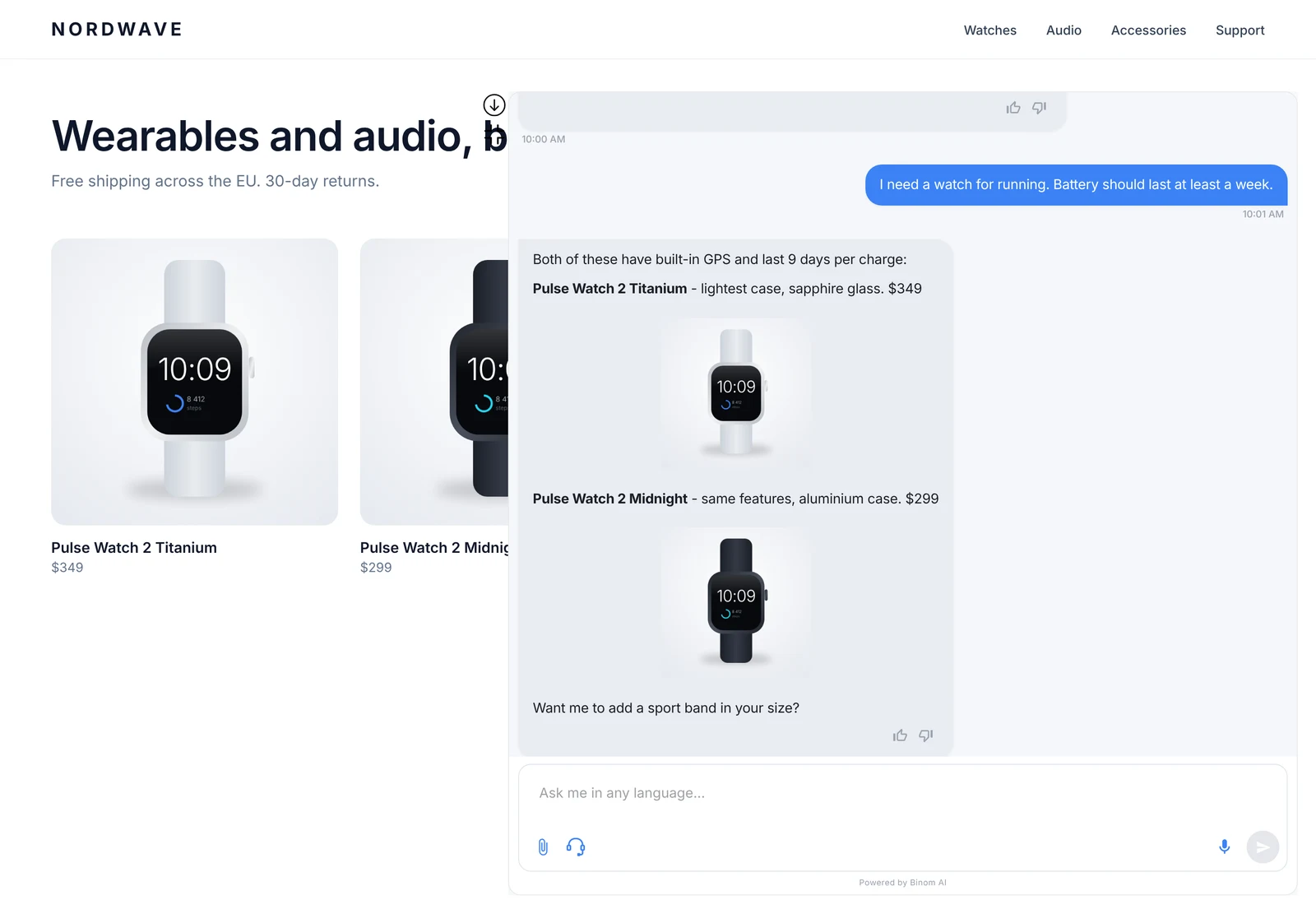
With the "Expand" button, the visitor enlarges the window when discussing several products and wants to see photos up close. On a phone, the chat opens full screen by default, and the "Back" button closes the chat without leaving the page, so the customer doesn't lose their cart or their place in the catalog.
How the widget looks on a phone
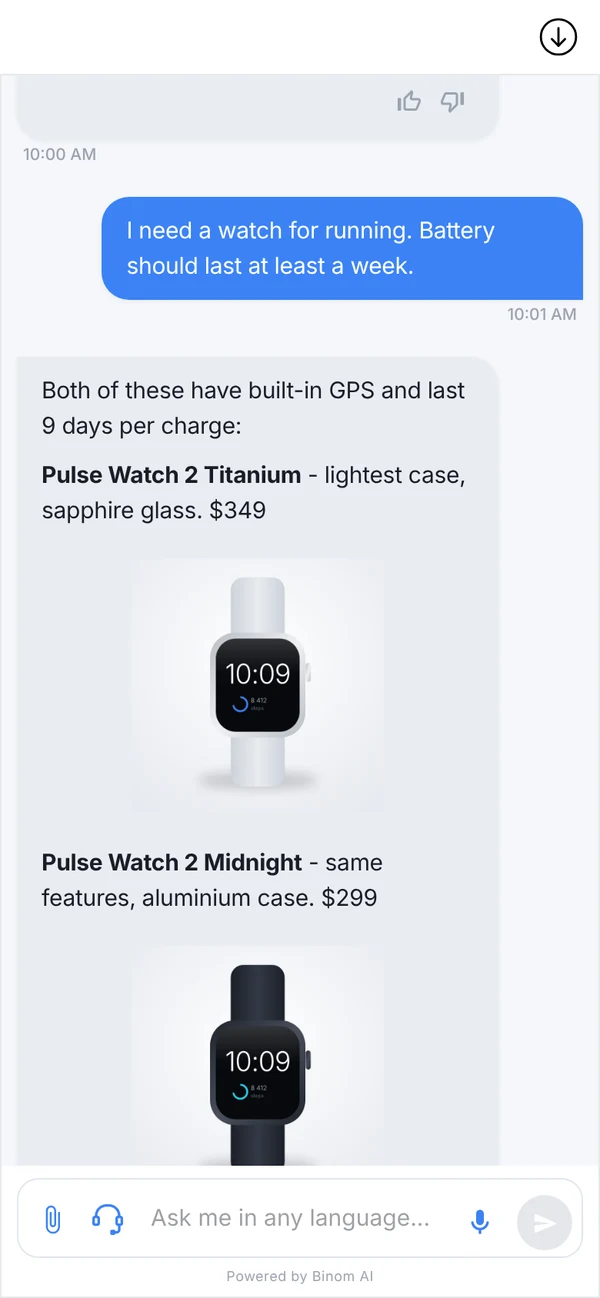
More than half of customers come from a phone, so on a phone the chat takes up the full screen: large text, product photos across the full width, and the microphone and voice conversation buttons within thumb reach.
Two modes: Product ID for stores and page address for content
The widget passes the page address the visitor is on to Binom every time, including when the site changes pages without a reload. How Binom uses this address depends on what you do.
Retail: Product ID
Each product in the price list has a Product ID. If it appears in the product page address, Binom immediately knows which product the customer is viewing and starts the conversation with it: it describes the product, answers questions, and suggests what to add to the set. The parameter name in the address is set in the settings; by default it is product_id, so a store where the parameter has a different name will also work. This mode is more accurate for stores: one product can open at several addresses, but its Product ID is the same.
Content: page address
If your website has articles, guides, a knowledge base or service descriptions, Binom relies on the page address and replies in the context of the material the visitor is reading. No separate product markup is needed.
The same Product ID is used by the chat in the product card (iFrame) and by the QR codes on the public Binom page.
How to set everything up step by step
The whole path from sign-up to a working chat on your website.
- Sign up and create a Binom. Choose a role, for example Binom Online & Retail Seller for a store: the salesperson behavior and sales logic are already built in. In the "Business profile", briefly describe your company.
- Connect products. In the "Price lists" section, click "Add Google Merchant" and paste the link to the product feed. Binom reads products, prices, availability and photos and updates them when the feed changes. No feed? Connect an RSS feed or upload a CSV.
- Give Binom knowledge about your company. A link to your website, documents with delivery, payment and return terms, and cards with answers to common questions. Describe the communication style to Binom Tutor in plain words, and it will remember.
- Test Binom. Ask it the questions your customers ask, in the public chat or in a dialog with Binom Tutor, and fix anything you don't like.
- Set up the widget. Open "Integrations", and on the "Widget" card click "Set up". Set the window size, colors (tick "Customize appearance separately" if the widget should differ from the general branding), upload the logo, enter the label next to the icon, and choose how often to show the greeting card. Click "Update".
- Add the code to your website. Copy the code at the bottom of the same page and paste it before the closing </body> tag or into the footer code field of your CMS: WordPress, Shopify, Tilda, Wix and others. Step by step: how to install the widget on a website.
- Connect notifications. Connect the Telegram bot for staff to receive messages about orders and requests to call a person, and if needed, CRM.
- For stores: enable Product ID. If the product page addresses contain the Product ID from the feed or price list, Binom will start the conversation with the product the customer is viewing. How this works is described above.
Widget, iFrame or public page: which to choose
| Widget | iFrame | Public Page | |
|---|---|---|---|
| Where the chat lives | A window in the corner of the website, on top of any page | Inside the page, in a block of your design, for example in a product card | A separate Binom page at a link |
| When to choose | You need a consultant across the whole website | You need a salesperson next to a specific product or section | You have no website, and you need a link for social media, newsletters and QR codes |
| Product ID and page address | Yes | Yes | Yes, via QR codes |
| Connection | One code for the whole website | Code in the right block of the page | Link only |
They can be combined: the widget across the whole website and iFrame in product cards. More: chat in the product card (iFrame) and public AI consultant page.
The widget in action
Dobrze Wiedzieć case: a chain of delicatessen stores in Warsaw put the widget on its website together with iFrame in product cards and QR codes in its stores. Customers talk to Binom by voice, see products right in the chat, and place orders. 18% of dialogs end in an order, and replies arrive in 4 seconds around the clock.
The role the case is built on: Binom Online & Retail Seller.
Frequently asked questions about the widget
What is a Binom?
A Binom is an AI employee from Binom AI: a digital version of a professional with a role, such as a salesperson or support specialist. You choose a role, give Binom knowledge about your company: website, product feed, documents and cards, and it works with customers in the widget on your website, in messengers, on social media and by phone. Binom learns from new questions, and whatever it doesn't know, it turns into a card that you answer.
How do I connect products from Google Merchant?
In the dashboard, open "Price lists", click "Add Google Merchant" and paste the link to the feed. Binom will load products, prices, availability and photos on its own and keep them updated as the feed changes. The same feed you use for Google ads will work, so prices in the chat and in the ads will match.
How is the Binom widget different from a regular chatbot for a website?
A regular chatbot works from pre-written scripts and buttons. Binom understands questions in plain words, answers using your price list, website and documents, shows products with photos, speaks by voice, understands voice messages and screenshots, and calls a live manager when the customer needs one.
Do I need a developer to install the widget?
No. The widget is installed with one code snippet that you copy in the dashboard and paste into your website, for example into the shared page template. A developer is only needed if you want to add Product ID to product page addresses.
What happens when a customer asks for a person?
Binom hands the dialog to a manager, the team gets a notification in the Telegram bot for staff and sees the dialog in the Binom dashboard. The manager replies in the same chat window. Outside working hours, the customer leaves a name, email and question.
What languages does the widget reply in?
Binom replies in the language the customer uses, if multilingual support is enabled. Widget labels and buttons are translated into nine languages and adapt to the website's language.
Where does Binom get product, price and availability information?
From the connected price list or product feed, as well as from the website and documents. Knowledge cards take priority over the price list and documents: if you wrote a clarification in a card, Binom will answer based on it.
Can I use the widget and iFrame on the same website?
Yes. For example, the widget works on all pages, and iFrame is embedded in product cards. The dashboard shows which window each dialog came from.
Does the widget work on a phone?
Yes. On a phone, the chat opens full screen, and the "Back" button closes the chat and keeps the customer on the same page.